How to Bulk Delete Your Tweets on X Using the Browser Console

How to Bulk Delete Your Tweets on X Using the Browser Console

If you want to clean up your X / Twitter account, deleting tweets one by one can take forever.
There are paid tools that can do this, but you can also automate the process directly from your browser using JavaScript and the browser console.

Before You Start

  • This method works directly in your browser using JavaScript.
  • You must be logged into your X account.
  • Deleted tweets cannot be recovered.
  • X may temporarily rate limit your account if you delete too many tweets too quickly.
  • Always double check scripts before running them in your browser console.

Script Settings

You can customize the behavior of the script by changing the values in the CONFIG section:

const CONFIG = {
  dryRun: false,
  maxActions: 9999,
  delayMs: 5000,
  skipPinned: true,
  removeReposts: true,
};
  • dryRun , If set to true, the script will simulate actions without actually deleting anything.
  • maxActions , Maximum number of tweets or reposts the script will process before stopping automatically.
  • delayMs , Delay in milliseconds between actions. Higher values reduce the chance of rate limiting.
  • skipPinned , If set to true, pinned tweets will not be deleted.
  • removeReposts , If set to true, reposts will also be removed automatically.

Step 1: Open Your X Profile

Go to your profile page on X:

https://x.com

Make sure you are viewing your own posts timeline.

Step 2: Open Developer Tools

  • Press F12 on your keyboard
  • Or right click anywhere on the page and click Inspect
  • Open the Console tab

Step 3: Paste and Run the Script

Copy and paste the following code into the browser console, then press Enter:

(() => {
  // =========================
  // CONFIG
  // =========================

  const CONFIG = {
    dryRun: false,
    maxActions: 9999,
    delayMs: 5000,
    skipPinned: true,
    removeReposts: true,
  };

  let actions = 0;
  let stopped = false;

  // =========================
  // STOP FUNCTION
  // =========================

  window.stopTweetCleanup = () => {
    stopped = true;
    console.log("Tweet cleanup stopped.");
  };

  // =========================
  // HELPERS
  // =========================

  const wait = (ms) =>
    new Promise(resolve => setTimeout(resolve, ms));

  async function clickElement(el, label) {
    if (!el) return false;

    if (CONFIG.dryRun) {
      console.log("[DRY RUN]", label);
      return true;
    }

    el.click();
    console.log("[CLICKED]", label);

    return true;
  }

  function getTopArticle() {
    return document.querySelector("section article");
  }

  function isPinned(article) {
    if (!article) return false;

    return article.innerText
      .toLowerCase()
      .includes("pinned");
  }

  // =========================
  // MAIN POST PROCESSOR
  // =========================

  async function processPost() {
    if (stopped) return false;

    const article = getTopArticle();

    if (!article) {
      console.log("No posts found.");
      return false;
    }

    // Skip pinned
    if (CONFIG.skipPinned && isPinned(article)) {
      console.log("Skipping pinned post.");
      window.scrollBy(0, 800);
      return true;
    }

    // =========================
    // REMOVE REPOSTS
    // =========================

    if (CONFIG.removeReposts) {
      const repostButton = article.querySelector(
        "button[data-testid='unretweet']"
      );

      if (repostButton) {
        console.log("Repost detected.");

        await clickElement(
          repostButton,
          "Open repost dialog"
        );

        await wait(1500);

        const confirmUndo = [
          ...document.querySelectorAll(
            "div[role='menuitem']"
          )
        ].find(el =>
          el.innerText
            .toLowerCase()
            .includes("undo")
        );

        if (confirmUndo) {
          await clickElement(
            confirmUndo,
            "Confirm undo repost"
          );

          actions++;

          await wait(2000);

          window.scrollBy(0, 800);

          return true;
        }

        console.log(
          "Undo repost option not found."
        );
      }
    }

    // =========================
    // DELETE TWEETS
    // =========================

    const menuButton = article.querySelector(
      "button[data-testid='caret']"
    );

    if (!menuButton) {
      console.log("Menu button not found.");

      window.scrollBy(0, 800);

      return true;
    }

    await clickElement(menuButton, "Open menu");

    await wait(1500);

    const deleteItem = [
      ...document.querySelectorAll(
        "div[role='menuitem']"
      )
    ].find(el =>
      el.innerText.trim() === "Delete"
    );

    if (deleteItem) {
      console.log("Delete option found.");

      await clickElement(
        deleteItem,
        "Delete tweet"
      );

      await wait(1500);

      const confirmBtn = document.querySelector(
        "button[data-testid='confirmationSheetConfirm']"
      );

      if (confirmBtn) {
        await clickElement(
          confirmBtn,
          "Confirm delete"
        );

        actions++;

        await wait(2500);

        window.scrollBy(0, 800);

        return true;
      }
    }
    else {
      console.log(
        "No delete option available."
      );
    }

    // =========================
    // SCROLL
    // =========================

    window.scrollBy(0, 800);

    return true;
  }

  // =========================
  // RUN LOOP
  // =========================

  async function run() {
    console.log("Starting cleanup...");
    console.log("Dry run:", CONFIG.dryRun);

    while (
      !stopped &&
      actions < CONFIG.maxActions
    ) {
      try {
        await processPost();
      }
      catch (err) {
        console.error("Error:", err);
      }

      await wait(CONFIG.delayMs);
    }

    console.log("Finished.");
    console.log("Total actions:", actions);
  }

  run();
})();

The script will:

  • Delete tweets automatically
  • Remove reposts automatically
  • Skip pinned tweets
  • Scroll down your profile continuously
  • Pause between actions to reduce rate limiting

How to Stop the Script

If you want to stop the cleanup process at any time, paste this into the console and press Enter:

window.stopTweetCleanup()

Possible Rate Limiting

X may temporarily limit actions if too many tweets are deleted too quickly.
If this happens:

  • Wait a few minutes
  • Refresh the page
  • Run the script again

Important Notes

  • This is a manual browser automation method.
  • X may change its interface at any time which could break the script.
  • Always test on a few tweets first before running large deletions.
  • Consider exporting your X archive before deleting content permanently.

You can request your X archive here:


https://x.com/settings/download_your_data

How to Bulk Delete Your Reddit Comments Using the Browser Console for Free

Bulk Delete Your Reddit Comments Using the Browser Console

If you want to clean up your Reddit history, deleting comments one by one can take forever. There are tools but many are not free. This method lets you automate the process using your browser’s developer tools.

Before You Start

  • This method works directly in your browser using JavaScript.
  • You must be logged into your Reddit account.
  • Use it carefully, deleted comments cannot be recovered.

Step 1: Go to Your Reddit Profile

Open your comments page (OLD reddit layout!):

https://old.reddit.com/user/YOUR_USERNAME/

Make sure you are viewing your comments, not posts.

Step 2: Open Developer Tools

  • Press F12 or right-click anywhere on the page and click Inspect
  • Go to the Console tab

Step 3: Paste and Run the Script

Copy and paste the following code into the console, then press Enter:

var $domNodeToIterateOver = $('.del-button .option .yes'),
    currentTime = 0,
    timeInterval = 500;

$domNodeToIterateOver.each(function() {

  var _this = $(this);
  currentTime = currentTime + timeInterval;

  setTimeout(function() {
    _this.click();
  }, currentTime);
});

This script will find all delete confirmation buttons and click them automatically with a slight delay between each action.

Step 4: Load More Comments and Repeat

Once the visible comments are deleted:

  1. Click Next at the bottom of the page
  2. Press the Up Arrow key in the console to bring back the script
  3. Press Enter again

Repeat this process until all comments are removed.

Possible Rate Limiting

Reddit may temporarily block your IP if you perform too many actions quickly. f this happens wait a few minutes and then continue again

Final Notes

This is a manual automation method, not a permanent tool. It works best on older Reddit layouts where jQuery is available.  Always double-check before running scripts in your browser

If you want a safer or more advanced method, consider using dedicated tools or Reddit API-based scripts.

CTRL+C doesn’t work in Edge, unless you press it multiple times

I try to give MS Edge a chance, but it has weird quirks. One of them seems to be that CTRL+C (copy text) barely works in Edge! You select a text, press CTRL+C, then paste it and there is no text pasted, or the old text that was in the clipboard gets pasted instead! If you press CTRL+C several times (or press the right mouse button and select copy from the menu), then it works. What is going on here? It is 2023 and Edge still has this problem. It was becoming so annoying that I thought to myself, I can’t be the only one with this problem. And (luckily) I am not.

Well, the problem seems to be the mini menu that pops up near cursor when you select a text that is then preventing CTRL+L to work.

Here is how to turn it off and fix the Edge copy paste problem:

Click 3 small dots in the top right corner of Edge, select Settings, then Appearance and scroll down to Context menus.
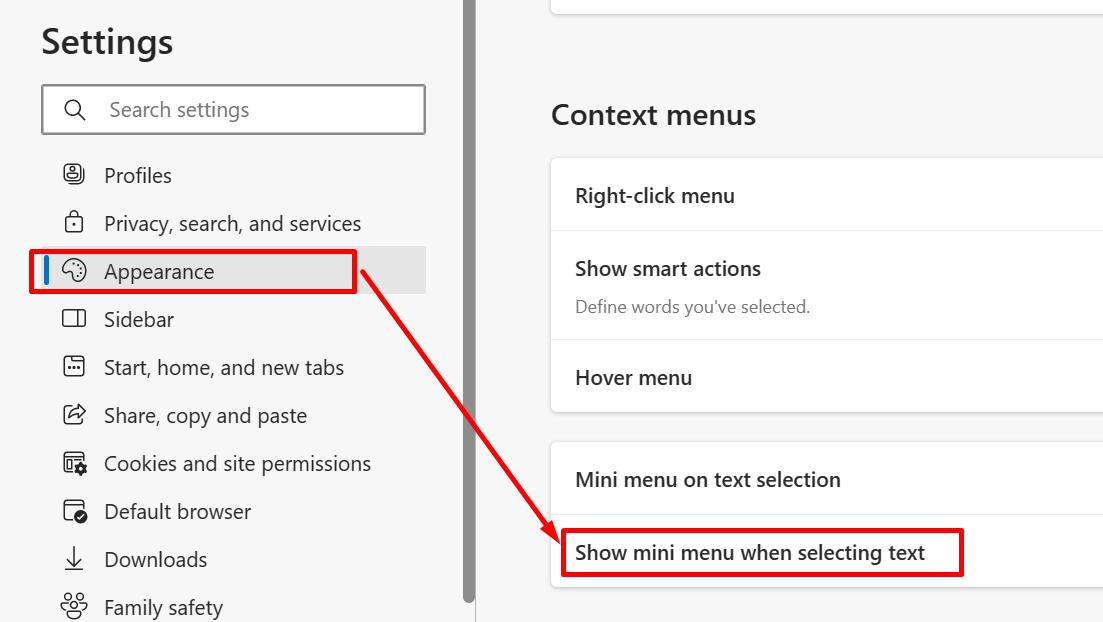
Mini menu on text selection Edge copy paste problem

Find “Mini menu on text selection” and disable “Show mini menu when selecting text“. This should fix the Edge copy paste problem. Happy copy pasting with Edge.